Quality Gates
Quality Gates
Quality Gates are pass/fail rule sets that Cyclopt Companion checks on every analysis. Each gate bundles a set of conditions that your code must satisfy, if all of them pass, the gate passes; if any fails, the gate fails and you know exactly where to look.
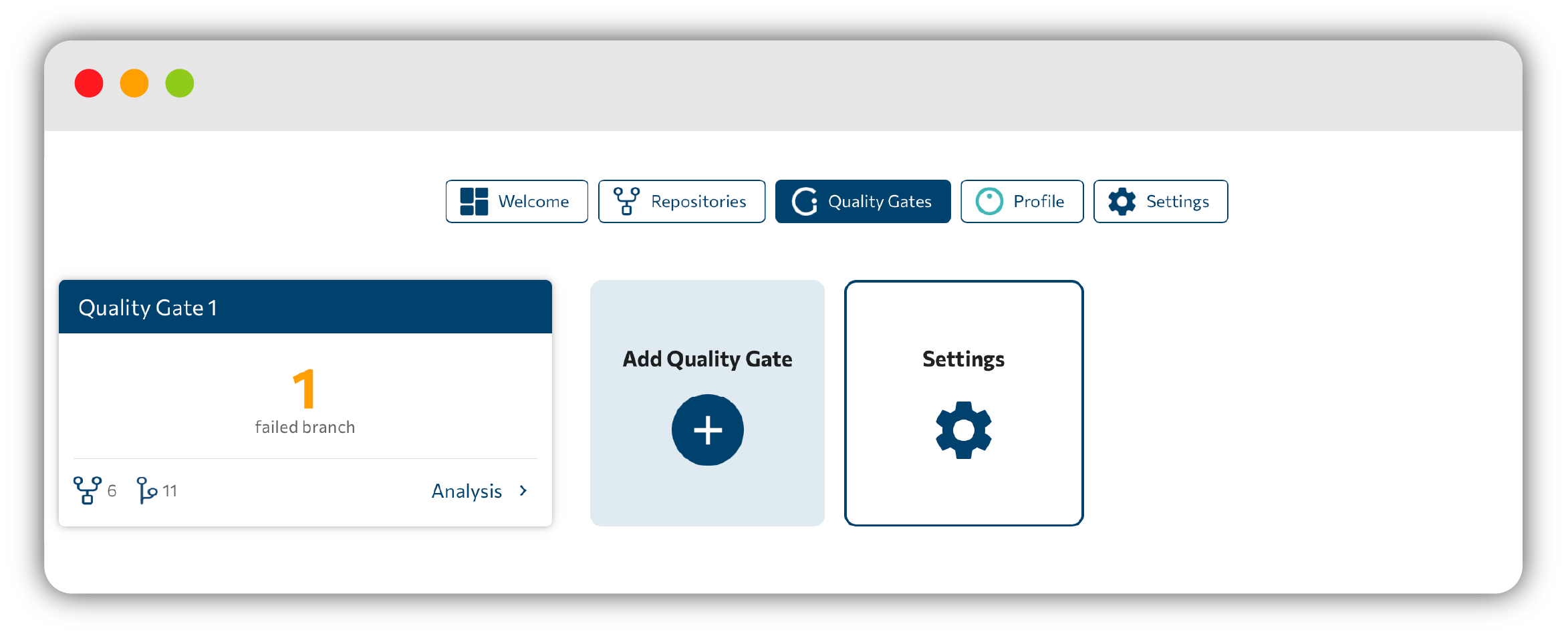
The Quality Gates tab
The Quality Gates tab lists your gates as cards. Each card shows:
- The gate Name.
- The number of linked Repositories and Branches.
- A live summary of the latest result — one of:
- All Checks passed, when every condition is met.
- A count of N failed branch(es), when one or more branches fail.
- No Result found for this Quality Gate! Results will be updated on new Analysis!, when the gate hasn't been evaluated yet.
Viewing a Quality Gate Result
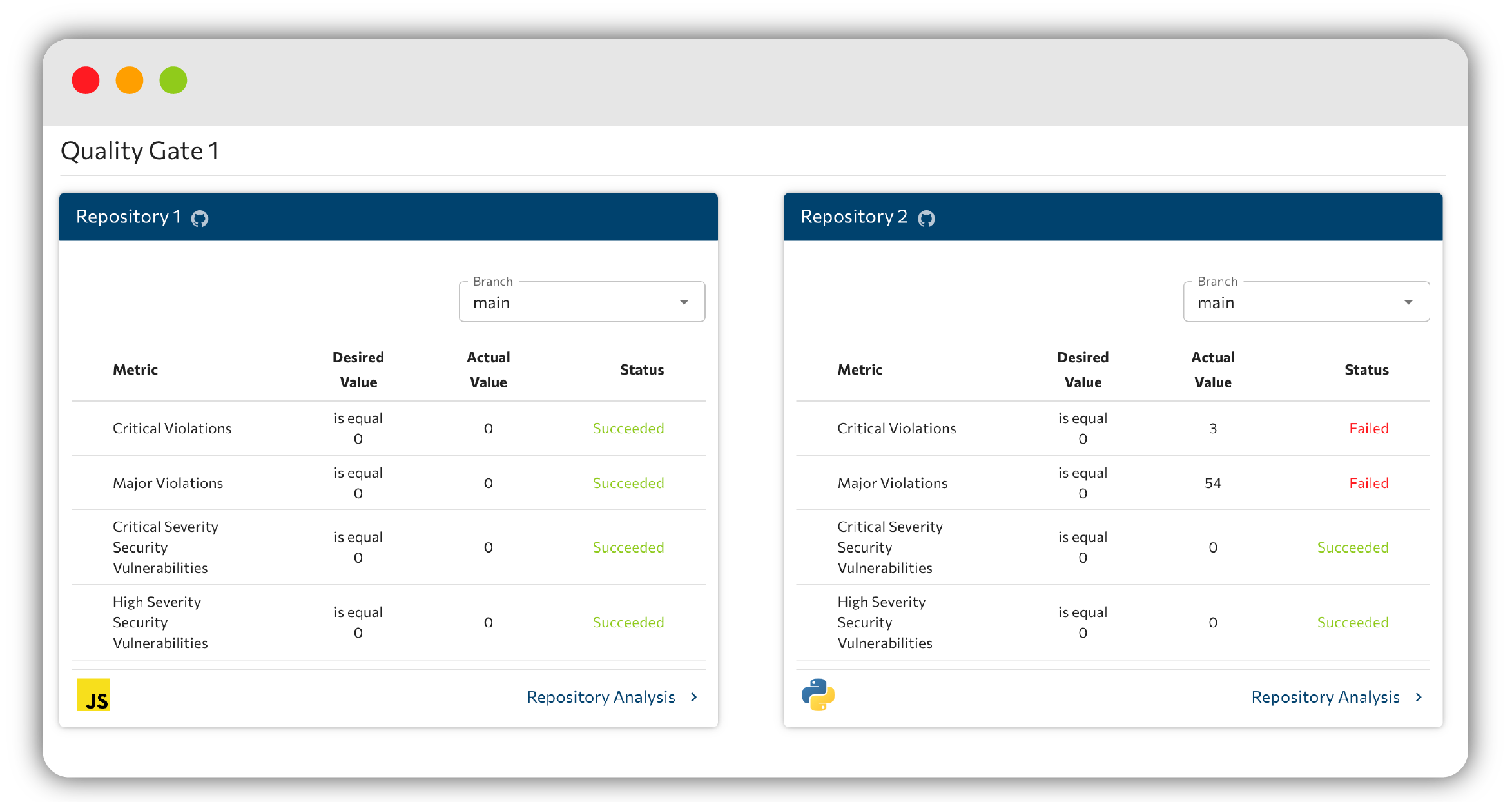
Opening a gate shows the Quality Gate Result: a per-repository grid that shows which conditions passed and which failed for each linked repository and branch. This makes it easy to spot the exact metric — and the exact repo — that needs attention.
Creating or editing a Quality Gate
To create or edit a gate, go to Settings → Quality Gates and click Add Quality Gate. The form is split into three parts.
Name
Give your quality gate a descriptive name.
Linked Repositories
Choose which repositories and branches the gate applies to:
- Apply to newly added repositories: automatically links any repository you add later.
- Apply to all branches of each repository: evaluates every branch instead of a selected subset.
- A per-repository accordion lets you enable each repo individually and pick either All branches or Or select specific branches.
Conditions
Define the rules that must pass for this gate to succeed. All conditions must be met (AND logic).
For each condition, pick a metric (Add a metric…), an operator (Add an operator…, e.g. is greater than / is less than), and a threshold (Add a threshold…), then click Add.
Available metrics include:
- Critical, Major, Minor, and Total Violations
- Duplicate Code (%)
- Total, Critical, High, Moderate, and Low Security Vulnerabilities
When you're done editing, use undo changes to revert your edits or Done to save the gate.
Next step: head to your Developer profile to see how your work adds up over time.