Settings
Panorama has two levels of settings: your Account settings, which apply to you personally, and Project Settings, which govern a single project. This page walks through both.
Account settings
Your account settings live at /settings and are organised into three tabs.
General
- A {Provider} Integration card shows your connected account's username and email, with a {Provider} Access Status switch to revoke or unlink it.
- A Kanban Theme picker sets the look of your boards — Default, Christmas, Vivid, Earth, or Post It.
- An Account Deletion card explains how to close your account: email support@cyclopt.com, and your data is removed within 60 days.
Integrations
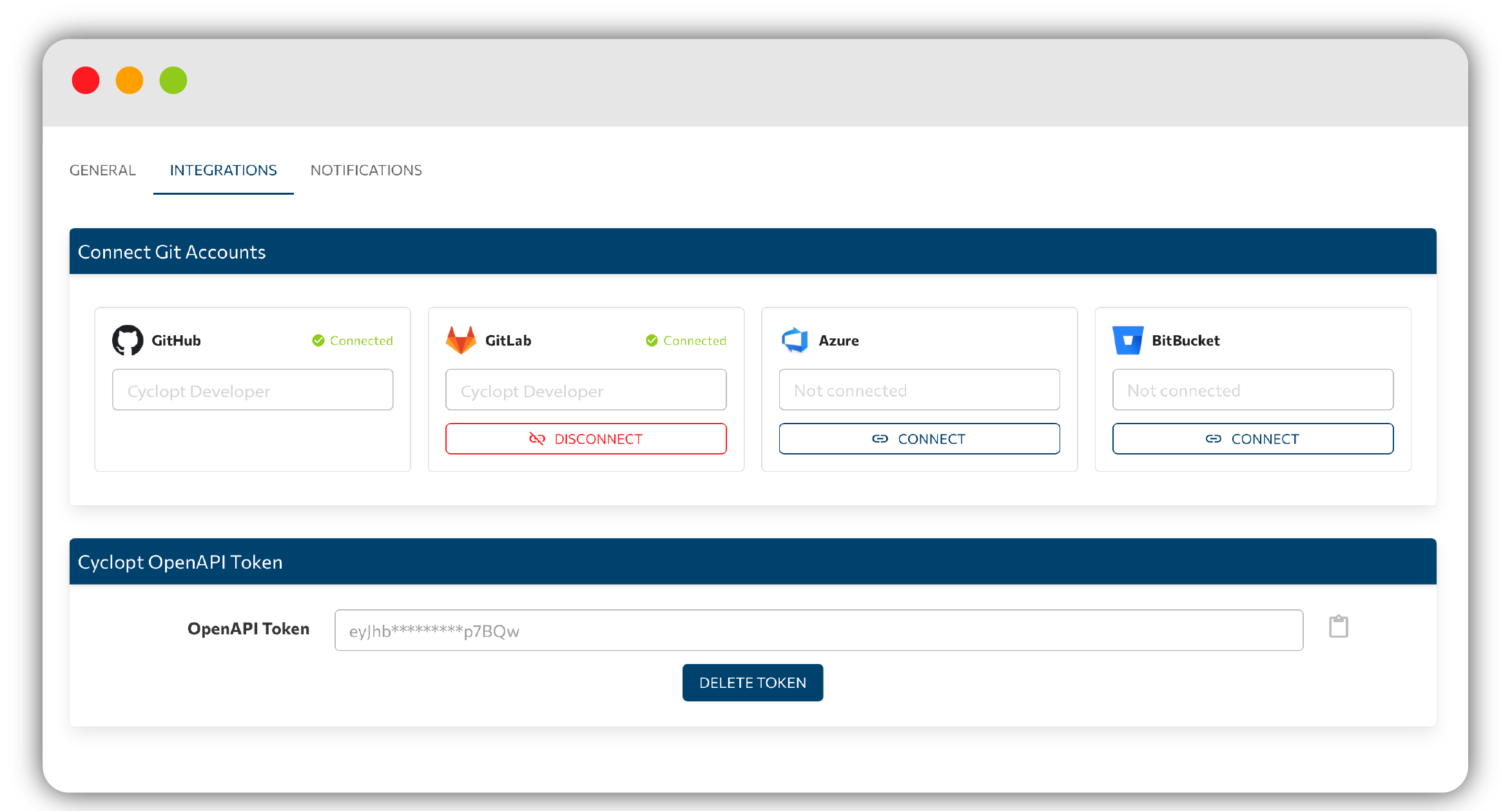
- Connect Git Accounts lets you link GitHub, GitLab, Azure, and BitBucket using either OAuth or Token modes, each with How to create a token links.
- A Cyclopt OpenAPI Token for programmatic access.
Notifications
Email Notifications controls what Panorama sends to your inbox.
Project Settings
Open a project and select its Settings tab to manage that project.
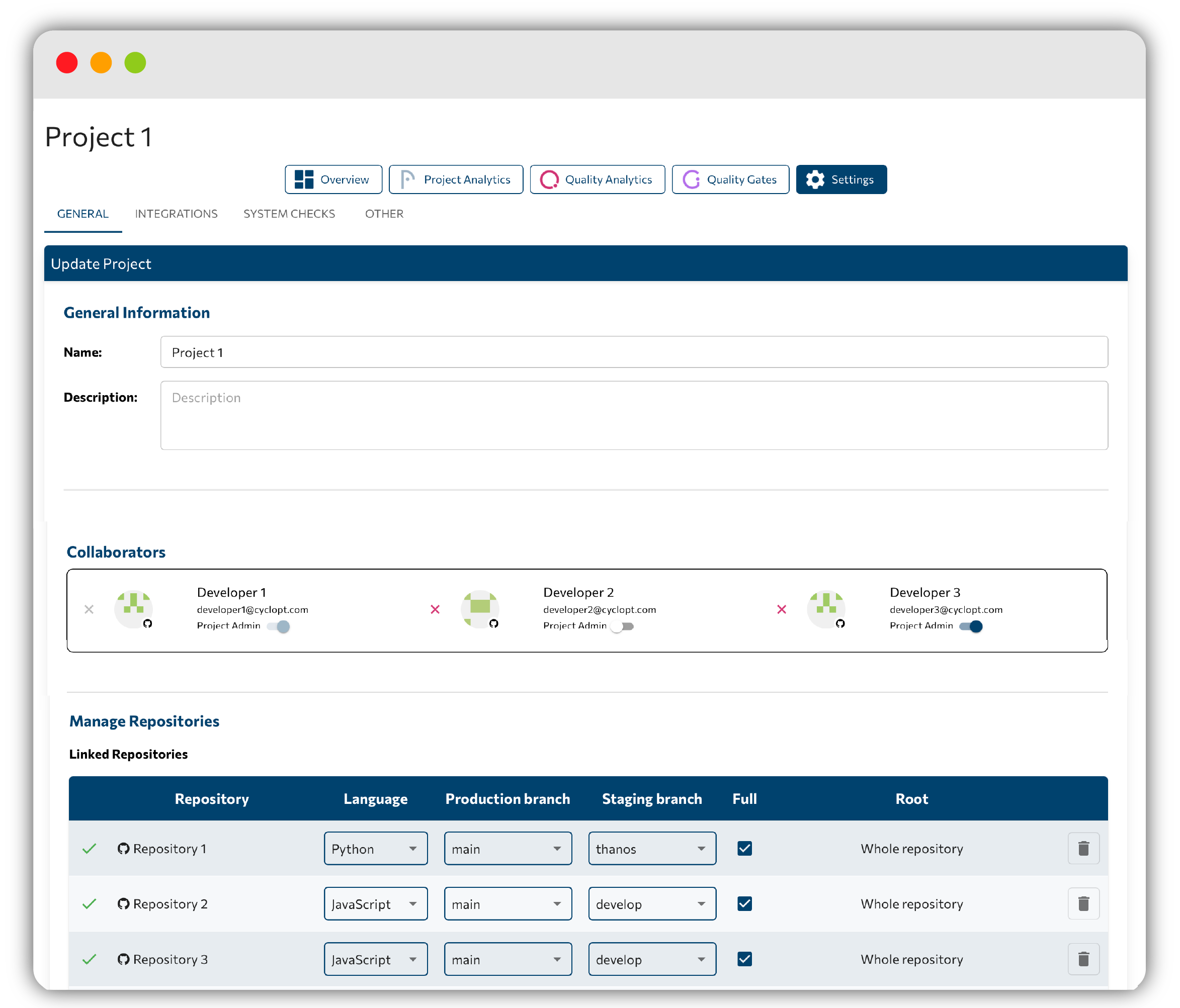
- Project name: rename the project.
- Manage Repositories: add or remove repositories, set the production and staging branch, and choose whether to analyse the whole repo or a subfolder.
- System Checks: the early-alert configuration. Under Select information you would like to monitor: you pick across Characteristics, Violations, and Quality Gates; saving shows System Check has been updated!
- Project Analytics and Quality Analytics: enable or disable each area. Quality Analytics are enabled by default.
- Danger Zone: delete the project. Only project admins can delete a project.
System Checks drive Early Alerts, set them up there to decide who gets notified.
Files and folders you do not want analyzed within a repository can be excluded through the configuration file.
When you edit something from the project settings, do not forget to press the DONE button.
Roles
Access within a project is governed by two roles: admin and member. Some actions, such as adding repositories or deleting a project, are limited to admins.
Next step
That completes the tour of Panorama. Head back to the Panorama overview for the big picture.